

You launched a WordPress site, published a dozen posts, and waited. Six months later, the traffic graph is still flat, and the phone isn’t ringing. In most cases, the problem isn’t your content quality. A handful of settings and habits are quietly holding your site back. These 18 SEO tips for WordPress walk through the exact fixes that move sites from invisible to found, in the order a real practitioner would tackle them.
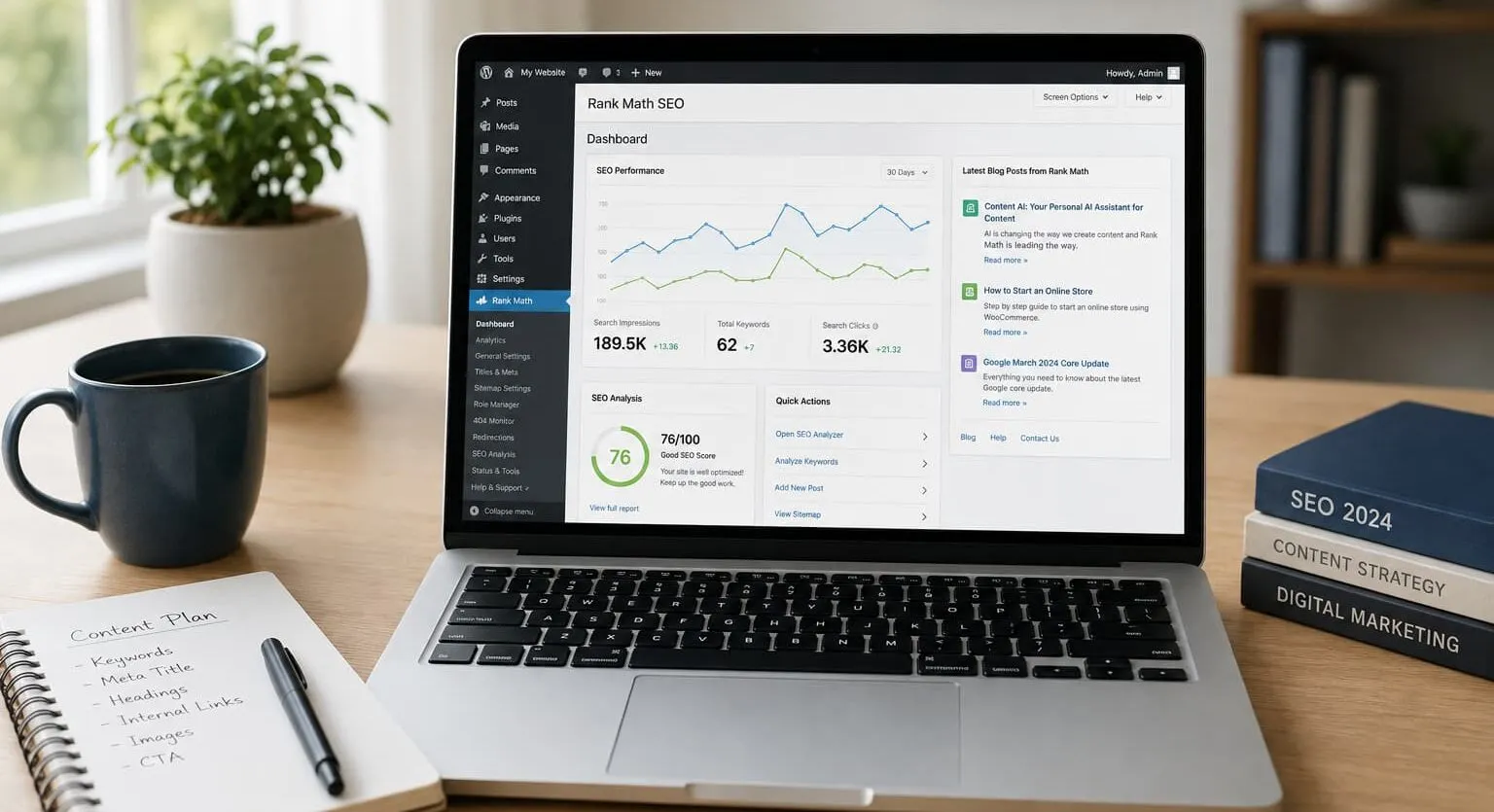
What WordPress SEO is and why it matters for organic traffic
WordPress SEO is the practice of configuring your site, content, and technical setup so search engines can find, understand, and rank your pages. It matters because organic traffic is a durable source of qualified leads a small business can build. Ads stop the moment you stop paying. A well-optimized WordPress site can keep earning search visibility month after month.
WordPress powers a huge share of the web partly because it handles the basics well out of the box: clean URLs, content hierarchies, and a theme system. But defaults only get you so far. The gap between “site exists” and “site ranks” is filled by deliberate on-page SEO, technical SEO, and a real content strategy. Google’s own Search Essentials documentation lays out the baseline every site must meet to appear in results, and it’s worth reading first. If you’re new to the fundamentals, Google’s SEO Starter Guide is another approachable resource that covers the core concepts in plain language.
Tip 1. Check your WordPress search engine visibility settings
Before anything else, confirm WordPress isn’t telling Google to stay away. Go to Settings → Reading and look for “Discourage search engines from indexing this site.” That checkbox exists so developers can hide a site during the build. Many live sites still have it ticked months after launch. The result is total invisibility that no amount of content can overcome.
Here’s why it matters so much. When you check that box, WordPress adds a `noindex` directive that tells every search engine to ignore your pages. You can have flawless content and still rank for nothing. Uncheck it, save, then verify by viewing your page source and searching for `noindex`. For a second confirmation, Google Search Console’s URL Inspection tool will tell you exactly whether a page is indexable and eligible to appear in search. Check this first. It’s the cheapest fix with a high payoff.
Tip 2. Install and configure a dedicated WordPress SEO plugin
Pick one WordPress SEO plugin and configure it properly. Running two at once creates conflicting sitemaps, duplicate meta tags, and canonical confusion. Your realistic options are Rank Math, Yoast SEO, AIOSEO, SEOPress, and The SEO Framework. Any of them will handle title tags, meta descriptions, schema markup, XML sitemaps, and canonical URLs.
For most small business owners, either Rank Math or Yoast SEO is the safe default. Rank Math’s free tier bundles redirect management, 404 monitoring, and multiple focus keywords. Yoast offers a longer track record and clear readability guidance. Once installed, run the setup wizard, connect the plugin to Google Search Console, and set your default meta templates. Don’t skip the configuration step. An unconfigured plugin does almost nothing. To get results, spend 20 minutes in the settings so every page inherits sensible defaults automatically.
Tip 3. Set up SEO-friendly permalinks and URL structure
Your URL structure is decided once and painful to change later, so get it right early. Go to Settings → Permalinks and choose “Post name.” This produces SEO-friendly permalinks like `yoursite.com/wordpress-seo-tips` instead of `yoursite.com/?p=123`.
Clean, readable URLs help both people and search engines understand what a page is about before they even click. Keep them short, include your target keyword, and drop filler words like “and,” “the,” and “of.” Avoid dates in the URL unless you publish time-sensitive news. A 2024 date in the slug makes evergreen content look stale in 2026.
One warning: changing your permalink structure on an existing site breaks every old URL unless you set up redirects. If your site has been live for a while, plan the change carefully and map old paths to new ones. For a fresh site, set SEO-friendly permalinks now and never think about it again.
Tip 4. Secure your site with HTTPS
An unlocked padlock icon in the browser bar tells visitors your site isn’t safe, and it tells Google the same thing. HTTPS security has been a lightweight ranking signal for years, and modern browsers actively warn users away from pages served over plain HTTP. That warning alone can drive away visitors before they read a word.
Most reputable hosts now include a free SSL certificate through Let’s Encrypt. Install it, then confirm WordPress is using it. Update your Site Address and WordPress Address under Settings → General to the `https://` version. After that, set up a redirect so every old `http://` request forwards to the secure version, avoiding duplicate-content splits between the two.
Also check for mixed-content warnings, where an image or script still loads over HTTP and breaks the padlock. A plugin or a quick database search-and-replace of old `http://` links usually clears it. HTTPS is table stakes now, not a nice-to-have.

Tip 5. Confirm your site is indexable and being indexed by Google
Indexing is the step between Google discovering a page and it being eligible to rank. If your pages aren’t indexed, they can’t show up for anyone. Start by searching `site:yourdomain.com` in Google to see roughly how many pages are indexed. A number far lower than your actual page count signals a problem.
For real answers, use Google Search Console. The Pages report shows exactly which URLs are indexed and, more usefully, why others aren’t: “Discovered, currently not indexed,” “Blocked by robots.txt,” or “Excluded by noindex tag.” Each reason points to a specific fix.
Many businesses overlook that indexing isn’t automatic or instant, especially for new or low-authority sites. You can nudge it along with the URL Inspection tool’s “Request Indexing” button after publishing important pages. But the durable path to indexing is a clean site structure, internal linking, and content worth crawling.
Tip 6. Create and submit an XML sitemap
An XML sitemap is a machine-readable list of every page you want search engines to find. Since version 5.5, WordPress generates a basic one automatically at `/wp-sitemap.xml`. Every major WordPress SEO plugin also produces its own, usually more configurable, XML sitemap. That lets you exclude thin pages like tag archives or author pages you don’t want crawled.
Use only one sitemap source to avoid confusion. If you run Rank Math or Yoast, turn off the core WordPress sitemap and rely on the plugin’s version. Then submit that XML sitemap URL inside Google Search Console under the Sitemaps report. This tells Google where to look and speeds up discovery of new content.
Check back periodically. A healthy sitemap shows a “Success” status and a page count close to your real number of published, indexable pages. A big discrepancy means something is being excluded that shouldn’t be, or included that shouldn’t.
Tip 7. Optimize your robots.txt file
The robots.txt file sits at the root of your domain and tells crawlers which areas to skip. WordPress generates a virtual one by default. The most common mistake is being too aggressive here. Blocking `/wp-content/` or your CSS and JavaScript files stops Google from rendering your pages properly, which quietly hurts rankings.
The root cause of a lot of accidental de-indexing is an overzealous robots.txt rule copied from an old tutorial. In reality, you rarely need to block much. Let Google crawl your assets so it can see your pages the way visitors do.
A sensible robots.txt disallows admin areas like `/wp-admin/` (WordPress already handles this) and points to your XML sitemap with a `Sitemap:` line. Most SEO plugins let you edit the file from the dashboard. After any edit, test it with the robots.txt tester and re-check that your key pages are still crawlable.
Tip 8. Run a technical and content SEO audit
An SEO audit helps you find problems you don’t know you have. It covers technical SEO (crawlability, site speed, broken links, indexing), on-page SEO (titles, headings, thin content), and your link profile. Running one before you invest months in content saves you from building on a cracked foundation.
Consider a service business that redesigns its site and quietly drops from page one to nowhere for its main keyword. An audit often traces it to a single cause: a stray noindex tag left in from the staging build, or a batch of old URLs returning 404s with no redirects. One overlooked setting can undo months of ranking work, which is exactly why you check before you keep publishing.
Free tools get you far. Google Search Console surfaces indexing and Core Web Vitals issues, while a crawler-based SEO audit reveals broken internal links, missing meta descriptions, and orphan pages. If you’d rather skip the DIY route, you can get a full SEO audit of your WordPress site that surfaces the same issues with expert interpretation attached.
Turn the findings into a prioritized list. Fix the high-impact, low-effort items first: a stray noindex, broken redirects, missing titles. An audit isn’t a one-time event either. Re-run it quarterly as your site grows.
Tip 9. Do keyword research and match search intent
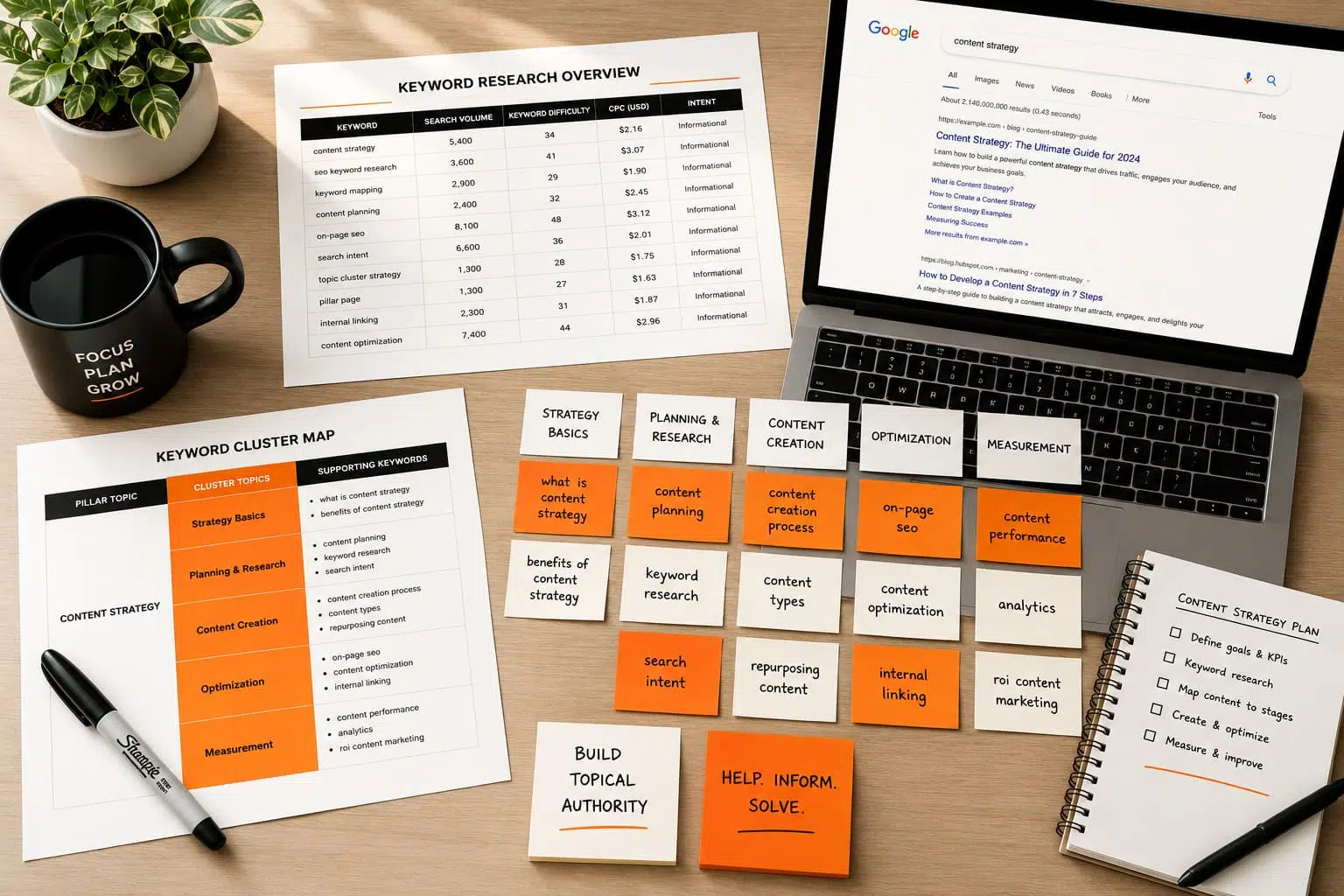
Keyword research answers a simple question: what are your customers actually typing into Google? Guessing wastes months. Tools like Google Keyword Planner, Ahrefs, and Semrush show real search volume and competition, so you write for demand that exists rather than terms nobody searches.
But volume is only half the story. Search intent decides whether you rank at all. Someone searching “best CRM software” wants a comparison, while “how to set up a CRM” wants a tutorial. Match the format to the intent, or you’ll lose to pages that do, no matter how good your writing is.
Here’s the practical method: take a target keyword, search it, and study the top ten results. If they’re all listicles, a 5,000-word essay won’t win. Group related keywords into topic clusters so your content strategy covers a subject thoroughly instead of publishing scattered one-off posts that never build authority.
Tip 10. Write high-quality, in-depth content for humans
Search engines reward high-quality content because their entire business depends on satisfying searchers. That’s the mechanism behind every content update Google ships. Write for the person, and rankings tend to follow.
In-depth doesn’t mean padded. It means fully answering the question a reader came with, plus the follow-up questions they’ll have next. A page that resolves someone’s problem completely keeps them from bouncing back to Google, and that behavior signals quality. Cover the topic, include specifics and examples, and cut every sentence that adds nothing.
Traffic alone isn’t enough, though. Visibility without conversions creates little value. So high-quality content should serve a business outcome: educating a prospect, answering an objection, or generating qualified leads by guiding readers to the next step. A strong content strategy balances depth for search engines with clarity and persuasion for the actual human deciding whether to hire you.
On-page SEO starts with the elements Google reads first. Title tags are among the most important on-page signals. Put your primary keyword near the front, keep it under about 60 characters, and make it something a person would actually click. Your WordPress SEO plugin lets you set a custom title separate from the H1 shown on the page.
Meta descriptions don’t directly influence rankings, but they can heavily influence click-through rate. Treat those 155 or so characters as ad copy: summarize the value and give a reason to click. If you leave them blank, Google writes its own, usually worse. To double-check your work before publishing, you can run your pages through a free on-page SEO analyzer that flags weak titles and missing descriptions.
Headings give your page structure. Use one H1, then organize content under logical H2s and H3s that include relevant terms. This helps readers scan and helps search engines understand hierarchy. Well-structured headings also make your content easier for AI systems to parse and cite.
Tip 12. Improve internal linking between pages
Internal linking is one of the most underused levers in WordPress SEO. Every time you link from one page to another, you help Google discover pages and pass authority between them, because links are how crawlers travel your site and share ranking strength across it. It also keeps readers on your site longer, which supports conversions.
The tactic that works: whenever you publish a new post, add links from a few relevant older posts pointing to it, using descriptive anchor text that describes the destination. “Local SEO checklist” beats “click here” every time, because the anchor tells both readers and search engines what to expect.
Organize your content into topic clusters connected through categories and tags. A pillar page covering a broad subject links out to detailed cluster posts, and each cluster post links back. This structure signals depth on a topic and concentrates ranking strength where you want it. Audit your internal linking quarterly to catch orphan pages that no other page links to.
Tip 13. Improve site speed and Core Web Vitals performance
Site speed is a ranking factor, and it can also be the difference between a visitor reading your page and abandoning it. Google measures user experience through Core Web Vitals: loading (Largest Contentful Paint), interactivity (Interaction to Next Paint), and visual stability (Cumulative Layout Shift). Poor scores here can drag down both rankings and conversions.
WordPress sites slow down for predictable reasons: bloated themes, too many plugins, unoptimized images, and a lack of caching. The fix stack is well established. Install a caching plugin, choose a lightweight theme, and serve your assets through a CDN so visitors load content from a nearby server.
Measure with real data. The Core Web Vitals report in Google Search Console shows how actual users experience your site, which matters more than a lab test. Fix the worst-performing template first, since one slow page type often affects dozens of URLs at once. Speed compounds: faster pages tend to get crawled more and convert better.
Tip 14. Optimize images with compression and alt text
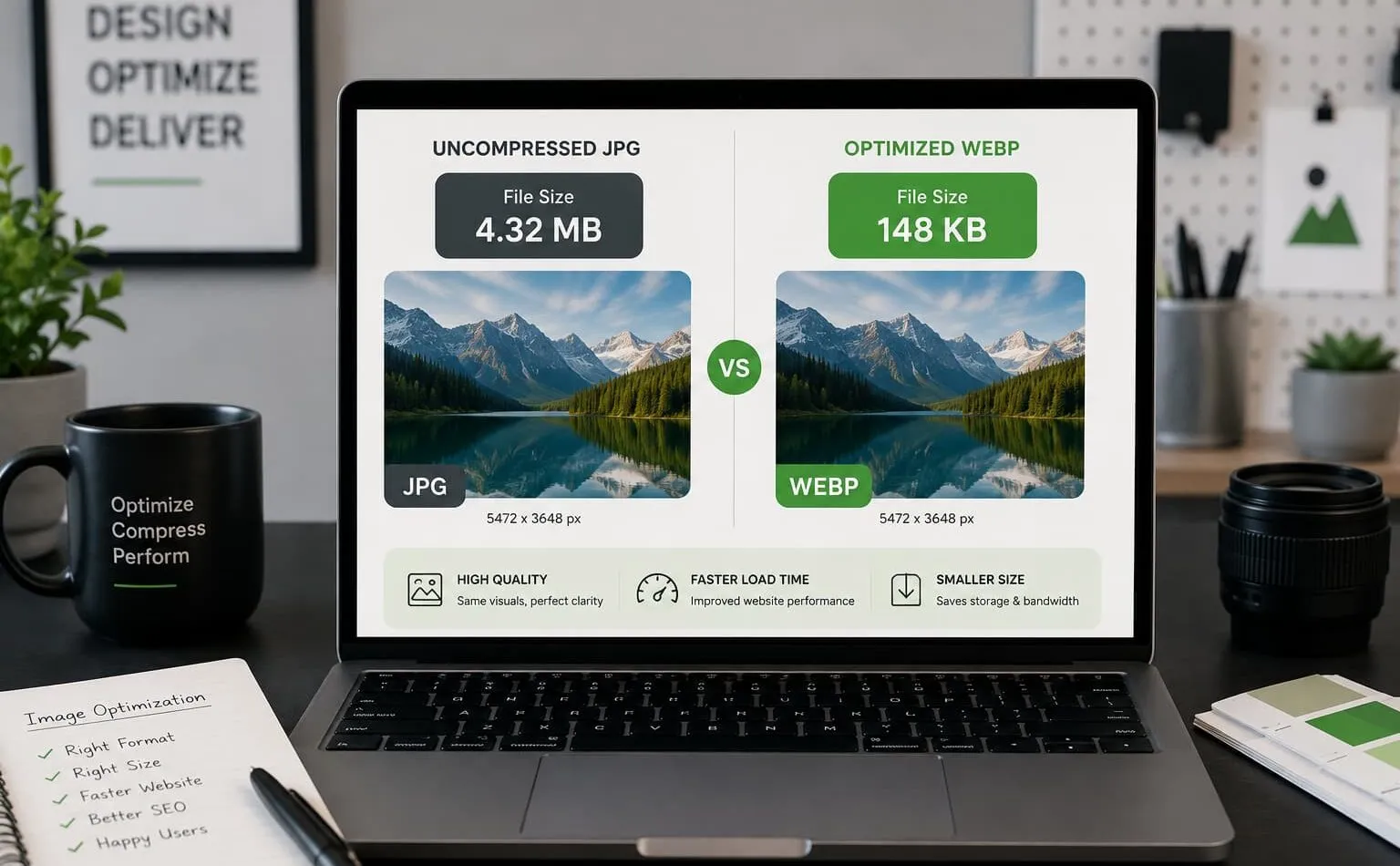
Images are usually the heaviest thing on a WordPress page, and image optimization is one of the fastest speed wins available. Uploading a 4MB photo straight from a phone camera can single-handedly tank your Core Web Vitals. Compress before or on upload.
Serve images in modern formats like WebP, which cut file size dramatically without visible quality loss. Several plugins handle image optimization and WebP conversion automatically. Enabling lazy loading (native in WordPress) means images below the fold only load when a visitor scrolls to them.
Alt text serves two jobs. It describes the image for screen-reader users, which is an accessibility requirement, and it gives search engines context that can earn you image-search traffic. Write alt text that genuinely describes the picture, including a relevant keyword only when it fits naturally. Also size images to their display dimensions instead of uploading a 3000px file into a 600px slot.
Tip 15. Use a responsive, mobile-friendly theme
Google indexes the mobile version of your site first, so a mobile-friendly theme isn’t optional. If your site looks broken or loads slowly on a phone, that’s the version Google judges you on. Most modern WordPress themes are responsive, but “responsive” and “good on mobile” aren’t the same thing.
Test your actual pages on a real phone, not just a desktop preview. Check that tap targets are large enough, text is readable without zooming, and nothing overflows the screen. A cluttered mobile menu or an intrusive popup can quietly kill conversions.
A lightweight, mobile-friendly theme also helps Core Web Vitals, because bloated themes carry heavy CSS and JavaScript that hurt mobile load times most. When choosing a theme, favor speed and clean code over dozens of flashy features you’ll never use. The best theme renders fast and gets out of the reader’s way on every device.
Tip 16. Fix 404 errors and set up proper redirects
Every broken link is a dead end for a visitor and a wasted crawl for Google. 404 errors pile up over time as you delete posts, change slugs, or rename categories. Left unchecked, they frustrate readers and scatter the ranking value those old URLs earned.
Find them in Google Search Console’s Pages report or your SEO plugin’s 404 monitor. Then decide. If a page moved, set up a 301 redirect to the new location so both users and search engines land where the content lives now. If a page is genuinely gone with no replacement, a 404 is the honest answer, but link to a helpful alternative from your 404 template.
Handle redirects carefully. Avoid chains where one redirect points to another that points to a third, since each hop slows crawling and dilutes signals. Redirect directly to the final destination. After a site redesign, audit redirects immediately, because a botched migration often causes sudden traffic loss.
Schema markup is structured data that tells search engines exactly what your content represents: an article, a product, a local business, an FAQ, a review. It doesn’t change what visitors see, but it can earn rich results like star ratings, FAQ dropdowns, and business details directly in search listings, which can lift click-through rate. To understand how search engines use it, Google’s documentation on structured data explains which content types qualify for rich results.
Most SEO plugins add basic schema automatically. For anything custom, Vineet Kukreti offers a free JSON-LD schema markup generator that produces valid code you can paste into a page, which saves non-technical owners from wrestling with the syntax. You can generate JSON-LD schema markup for your posts and validate whatever you add using Google’s Rich Results Test.
Breadcrumbs are the second half of this tip. They show a page’s position in your site hierarchy (Home → Blog → WordPress SEO), which helps visitors navigate and gives Google a clear structural signal. Most SEO plugins and themes can enable breadcrumbs with a single toggle, and they carry their own schema too.
Tip 18. Build a healthy backlink profile
Backlinks remain one of Google’s strongest ranking signals, because a link from another site is essentially a vote of confidence. A healthy backlink profile is built on relevance and trust, not volume. Ten links from respected sites in your industry can outweigh a thousand spammy directory links, and buying links risks a penalty.
Practical link building that works for small businesses: create genuinely useful content other sites want to reference, earn local citations and industry directory listings, contribute guest articles to reputable publications, and get listed by suppliers, partners, and associations you already work with. A well-optimized Google Business Profile also supports local search visibility.
Many assume more links always means better rankings. In reality, a spike of low-quality links can hurt you. Monitor your backlink profile with a tool like Ahrefs or Semrush, and focus your energy on being worth linking to. Sustainable link building is slow, and that’s exactly why it holds up.
Optimize your WordPress site for AI search visibility (ChatGPT, Perplexity, AI Overviews)
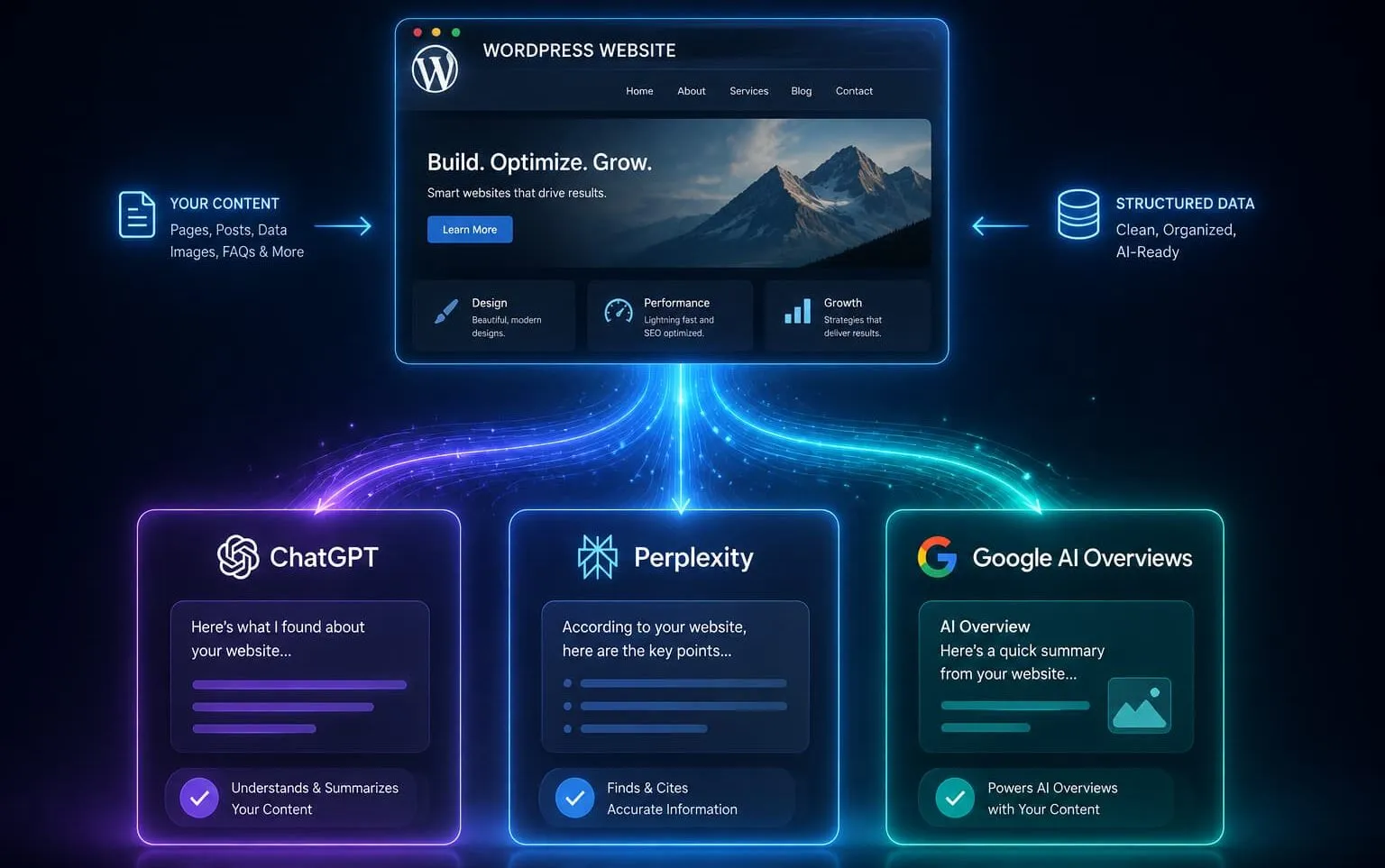
Search is splitting into two front doors. Alongside traditional results, people now get answers from ChatGPT, Perplexity, and Google’s AI Overviews. AI search visibility means structuring your content so these systems can pull, understand, and cite it. The good news: much of what supports AI search visibility overlaps with solid on-page work.
Clear, well-structured content helps here. Use descriptive headings, answer questions directly in the first sentence of a section, and include concrete facts and definitions AI models can lift cleanly. Schema markup and a logical page structure help machines parse your meaning. To check where you stand, Vineet Kukreti offers a free AI search visibility checker, plus an llms.txt generator that signals to AI crawlers how to use your content. With so many moving parts, it often helps to book an SEO consultation to prioritize your fixes rather than trying to tackle every optimization channel at once.
AI Overviews increasingly answer questions without a click, so being the cited source matters more than ever. Write to be quoted, not just ranked.
Working through these 18 SEO tips for WordPress in order will help fix much of what quietly holds a site back. But knowing which items matter most for your specific business is where a second set of eyes pays off. If your traffic has stalled or a redesign wiped out your rankings, a strategic WordPress SEO review with Vineet Kukreti can help pinpoint missed opportunities and what to fix first. Results vary based on competition, website condition, industry factors, and implementation, so the value comes from prioritizing the right work rather than doing everything at once.
FAQs
Q1. Which SEO plugin should I install on WordPress?
A1.
Rank Math, Yoast SEO, AIOSEO, SEOPress, and The SEO Framework all handle meta tags, XML sitemaps, schema, and canonical URLs. Rank Math’s free tier is unusually generous, bundling redirect management, 404 monitoring, and multiple focus keywords, while Yoast (10M+ installs) leans on readability guidance and a longer track record.
Q2. Do I actually need a plugin when WordPress already has built-in SEO features?
A2.
WordPress covers the basics on its own, including clean permalinks, content hierarchies, and automatic XML sitemaps since version 5.5. A plugin still earns its place by adding schema markup, redirect control, social previews, and per-page meta title and description editing without touching code.
Q3. Is Yoast SEO worth paying for, or is the free version enough?
A3.
The free version handles real-time SEO and readability checks, XML sitemaps, schema, canonical URLs, and social previews, which is plenty for most small sites. Premium is mainly worth it if you want internal linking suggestions and redirect management at scale, so start with the free version and upgrade only when a specific limitation blocks you.
Q4. What's the most common WordPress SEO mistake that quietly kills rankings?
A4.
Accidentally blocking indexation by leaving “Discourage search engines from indexing this site” checked under Settings → Reading, or shipping stray noindex meta tags. Uncheck the box, scan your page source for `<meta name=”robots” content=”noindex”>`, and confirm indexation in Google Search Console.
Q5. How much does site speed really affect WordPress SEO?
A5.
Core Web Vitals are a ranking factor, so slow load times cost you visibility and frustrate visitors before they convert. Use a lightweight theme, enable caching, lazy-load images in WebP, minimize CSS/JS, and serve assets through a CDN.
Q6. If I already installed one SEO plugin, can I switch to another later?
A6.
You can, but switching midstream can break metadata, redirects, and internal structure if you don’t migrate settings carefully. Pick one plugin deliberately and use its built-in import tool if you do move, then re-verify titles, descriptions, and redirects afterward.
Q7. Can ChatGPT handle my WordPress SEO for me?
A7.
ChatGPT can draft meta descriptions, outline content, and suggest internal links, but it can’t configure your plugin, fix indexation, or validate Core Web Vitals on your live site. Treat it as a drafting assistant, then apply and verify every change inside WordPress and Search Console yourself.
Q8. How do I strengthen internal linking on a WordPress site?
A8.
Link new posts to related older ones using descriptive anchor text, and organize content into clear topic clusters using categories and tags. This helps search engines understand your site structure and passes authority to the pages you most want to rank.

Vineet Kukreti is an experienced SEO and project management expert with over 10 years of success helping small businesses grow. He has led SEO campaigns that improved Google rankings, increased website traffic, and strengthened local visibility. As a project manager, Vineet brings structure and efficiency to digital operations, ensuring smooth execution and measurable results. His combined expertise in SEO and business operations makes him a trusted partner for growth-focused businesses.